What You Need Before Installing WordPress
Before you begin the WordPress installation process, you’ll need to gather a few essential components. First, you must have a registered domain name (e.g., yoursite.com). Second, you need a web hosting account that supports PHP and MySQL. For a PBN, it’s crucial to choose a host that offers isolated resources and good performance. You can review our PBN hosting requirements guide for specific technical recommendations. Finally, you’ll need your hosting account’s FTP credentials or access to a file manager within your hosting control panel (like cPanel).
Step-by-Step WordPress Installation
Follow these steps carefully to install WordPress successfully. This manual method gives you full control, which is a great foundation before exploring automated solutions.
Step 1: Download & Upload WordPress
Visit WordPress.org and download the latest version of WordPress. Unzip the file on your computer. Using an FTP client (like FileZilla) or your host’s file manager, upload all the WordPress files to the public_html folder (or equivalent root directory) of your hosting account. This process can take a few minutes.
Step 2: Create a MySQL Database
WordPress stores all its content in a database. Log into your hosting control panel (cPanel, Plesk, etc.). Find the ‘MySQL Databases’ section. Create a new database (e.g., wp_pbn_main). Then, create a new database user with a strong password and assign that user full privileges to the new database. Note down the database name, username, and password.
Step 3: Run the WordPress Installer
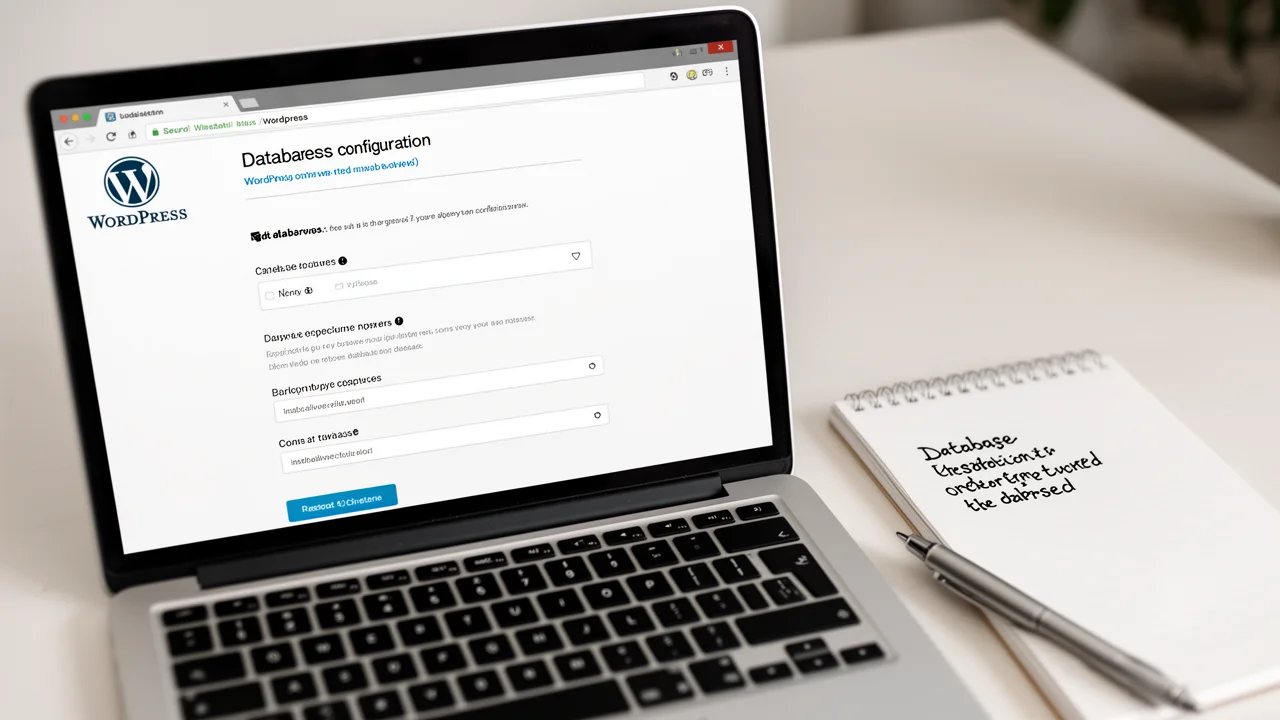
Open your web browser and navigate to your domain (e.g., http://yoursite.com). The WordPress installation wizard should start. Select your language, then click ‘Let’s go!’. On the next screen, enter the database details you created: database name, username, password, and database host (usually ’localhost’). Click ‘Submit’ and then ‘Run the installation’.
Step 4: Configure Your Site
You will now set up your site’s basic information. Enter your site’s title, create an administrator username (not ‘admin’), a strong password, and your email address. Click ‘Install WordPress’. Once complete, you can log into your new WordPress dashboard at yoursite.com/wp-admin. This manual setup is a valuable learning experience, but for scaling a PBN, an automated PBN setup can save immense time.
Post-Installation Checklist
After installation, don’t just start posting. A secure and optimized foundation is key for any website, especially a PBN. First, go to Settings > Permalinks and choose ‘Post name’ for SEO-friendly URLs. Second, immediately delete the default ‘Hello Dolly’ plugin and any sample post or page. Third, install essential security and backup plugins. Finally, consider your site’s structure and how it will integrate with your broader network strategy, a topic covered in depth by our partners at Content Network Strategies.
Common Installation Problems & Solutions
Even with a guide, you might hit a snag. Here are quick fixes for common issues. ‘Error establishing a database connection’: This means WordPress can’t connect to your MySQL database. Double-check your database name, username, password, and host in the wp-config.php file. White screen of death: Often caused by a memory limit or plugin conflict. Increase PHP memory limit via your hosting panel or by editing .htaccess. File permission errors: When uploading via FTP, files should be set to 644 and folders to 755. If problems persist, your hosting provider’s support is the best resource. For SEO professionals managing multiple sites, these repetitive tasks highlight the efficiency of dedicated PBN management solutions.